Understanding user roles and permissions
Owner, admin, attorney and client are four different jobs. What each one can see and do, and why it cannot be talked around from the browser.
4 min readReviewed 5 November 2026
Every account has exactly one role within a firm. The role is recorded against the account on the server, and every request is checked against it there — not by hiding buttons in the browser. Somebody who guesses a URL still gets refused.
The four roles
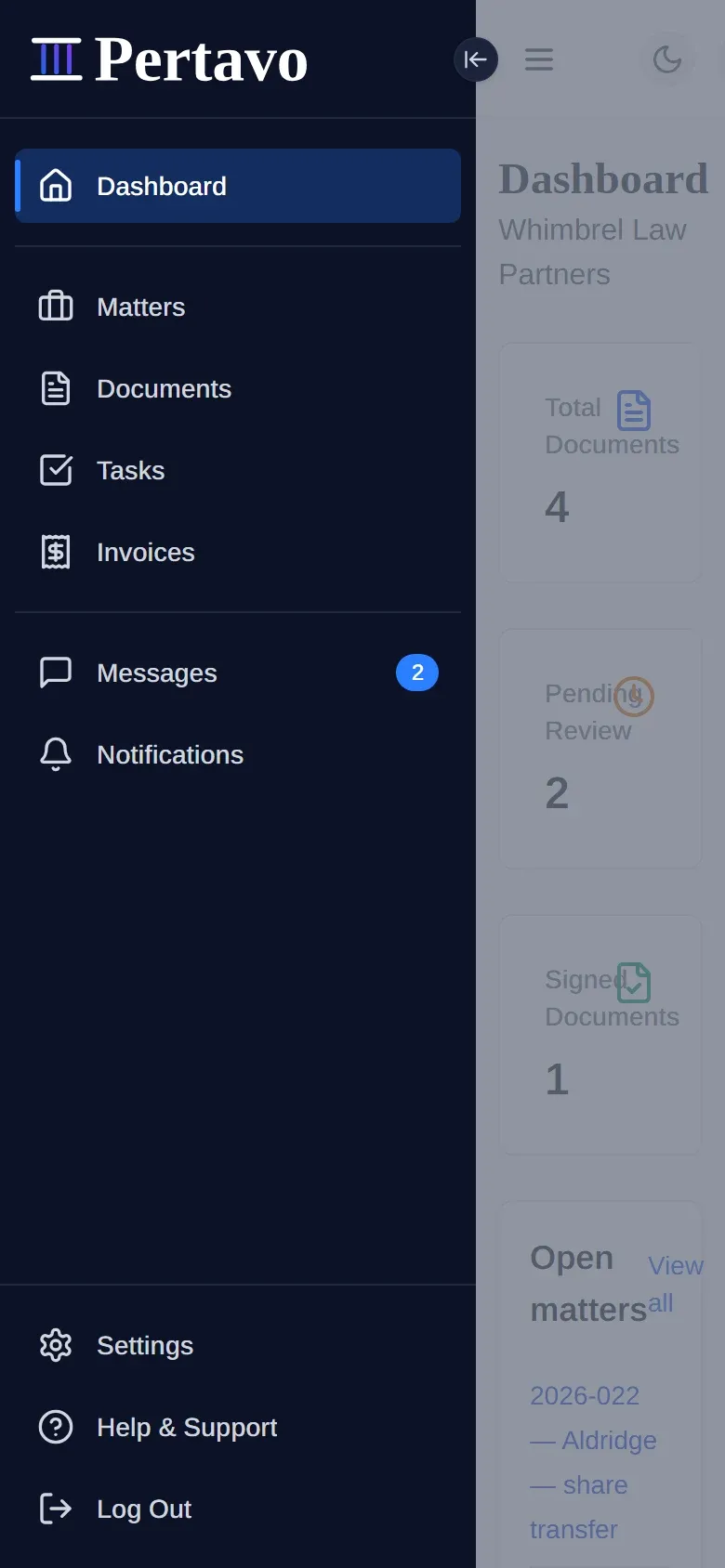
Client. The people you work for. A client sees the documents in their own account and nothing else: no other client’s files, no firm-wide folder tree, no user list. They can upload, download what they have been given, read and send messages, and sign what is sent to them for signature.
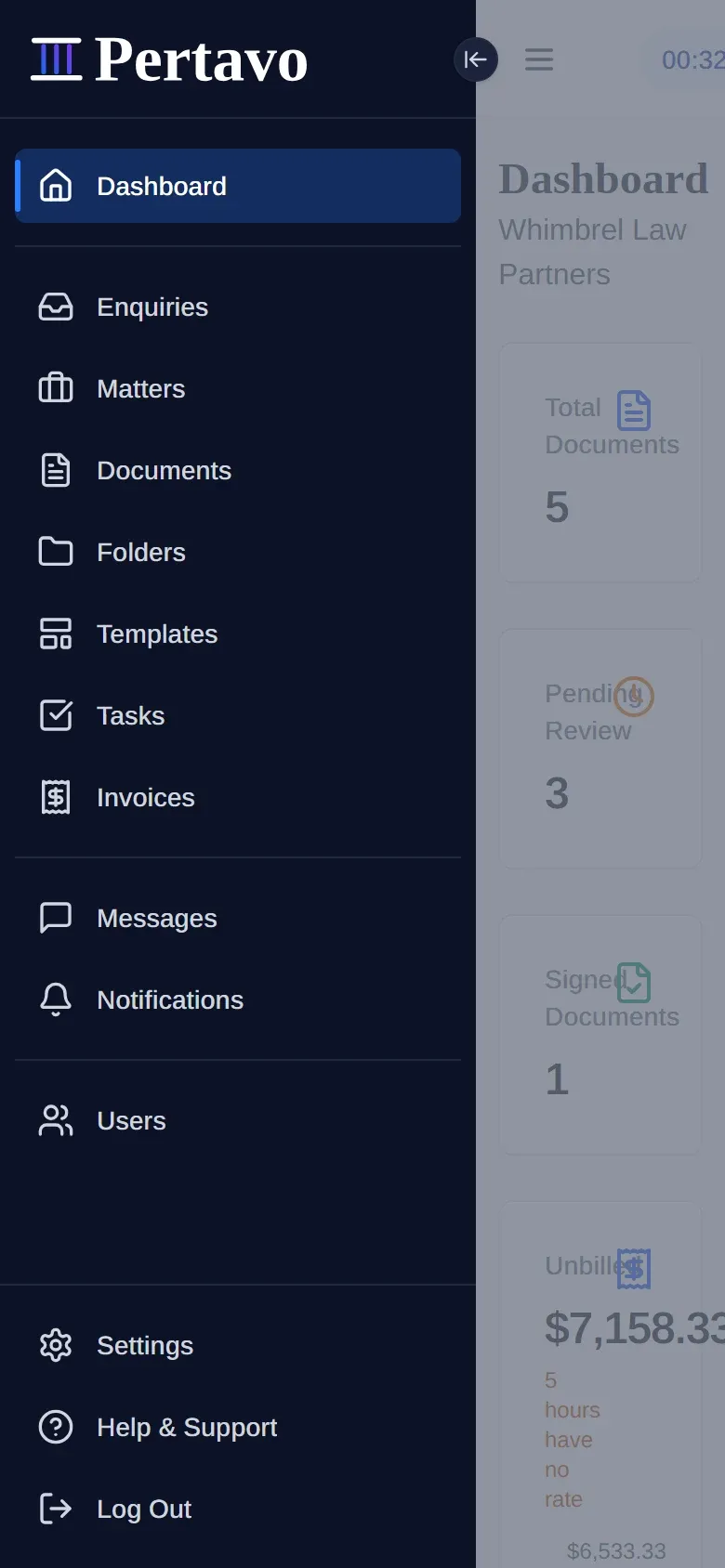
Attorney. The people who do the work. An attorney sees the firm’s documents and folders, uploads and files documents, invites clients, assigns work, and requests signatures. This is the role most of your staff should have.
Admin. Everything an attorney can do, plus the firm’s own configuration: organization settings, the user list, and billing.
Owner. Everything an admin can do, plus one thing only an owner can do: hand out the owner and admin roles themselves. The firm’s founder — whoever registered the account — is an owner from the first minute and stays one; see Changing somebody’s role below.
Most firms need exactly one owner and think no further about it. The role matters on the day somebody has to be promoted, and on the day an admin leaves.
Your own role is in the menu under your name, in the top right. It sits beside your email address there, so if you are ever unsure what you are, that is where to look rather than asking somebody.
An accounting firm reads CPA everywhere this page says attorney. The role is the same one; only the label changes. See Pertavo for accounting firms.
The difference shows before anybody opens anything — the menu itself is shorter for a client.
What a client genuinely cannot reach
This is the question clients ask most often, so it is worth being precise. A client’s request is narrowed to their own records before it reaches the database. Another client’s documents are not merely hidden from the screen — they are never fetched.
The same is true between firms. Two firms using Pertavo cannot see each other’s anything.
Changing somebody’s role
Open Users, click the person’s row, and the role is in the panel that opens, under Role in this firm. Pick the new one and press Change role.
Four rules decide whether you may. All four are enforced on our side, not by hiding the control — the panel greys it out and tells you which rule stopped you, and somebody who sends the request another way gets the same refusal:
- Only an owner or an admin can change roles at all. Everybody else sees the role and cannot touch it.
- Only an owner can hand out owner or admin. An admin can make somebody an attorney or a client, and no more. This is what stops an admin quietly promoting themselves.
- The firm’s founder keeps the owner role. Nobody can change it, including the founder. It is the floor that stops a firm locking itself out of its own settings.
- You cannot deactivate yourself.
Two more things worth knowing:
- Changing a role changes what that person can see the moment they reload. It does not move or delete anything they have already uploaded.
- Promote the replacement before you demote an admin. The founder’s account means there is always one owner left, so the firm cannot be locked out entirely — but it can be left with one person who has to do everything.
Roles and invitations
An invitation carries a role with it — you decide whether you are inviting a client or an attorney at the moment you send it, and the person who accepts gets exactly that. They cannot pick a different one on the way in. See Inviting clients and team members.
Beyond the role
Roles decide what kind of work somebody does. One further thing decides which particular documents a client touches: who each document is assigned to. There is no per-document permission level and no folder-based sharing — see Who can see a document.
This did not answer it?
Sign in and write to us from Help & Support inside the portal — a message from there arrives with your firm and your account already attached, so nobody has to ask you which is which.
Sign in to Pertavo